Aiarty Image Enhancer review: AI photo upscaling and enhancement software
Last update: 06/01/2026
Our blog continues to grow thanks to you, our readers. This post may contain affiliate links, which means we can earn a small commission if you make a purchase through them, at no extra cost to you. This helps us to continue to bring you more and support our work!
Hi everyone! I have to admit, it had been a while since I last wrote a photography article on the blog, simply because I’ve been a bit short on time lately. But recently, I was contacted by a company specializing in AI-powered image enhancement software, and I have to say their approach really caught my attention. Thanks to them, I had the chance to test their software, Aiarty Image Enhancer.
To be completely honest, I’ve been a little less focused on photography lately, mainly because I’m working on other blog-related projects. But my passion for photography is still very much there. And even though I now clearly want to spend as little time as possible post-processing my photos, I found this software’s approach genuinely interesting. It felt like the kind of tool that could fit quite well with the way I work today.
As I mentioned earlier, I was contacted by the brand to test Aiarty Image Enhancer, a software program designed to make photo correction and enhancement easier with the help of artificial intelligence. And in a time when AI is developing so quickly, with tools like ChatGPT becoming more and more accessible in recent years, I really couldn’t pass up the opportunity to try it for myself.
In this short and practical review, I’ll share my honest opinion on Aiarty Image Enhancer and take a closer look at what it can actually do. The idea isn’t to write an endless review, but rather to see, in concrete terms, what this type of software can bring, when it can be useful, and what its potential limits are.
Aiarty Image Enhancer: what exactly is it?
As I said, Aiarty Image Enhancer is an AI-powered image enhancement software. Let’s be clear from the start: this software is not designed to replace programs like Lightroom or DxO, which I use on a daily basis for more advanced processing of my RAW files. That’s simply not the purpose of this type of tool.
Here, the idea is different. Aiarty Image Enhancer mainly relies on the progress made in recent years in artificial intelligence to offer fast, targeted corrections on certain types of images. For example, the software can be used to reduce noise in photos taken in difficult conditions, especially with older cameras or at high ISO. It can also increase an image’s resolution while trying to preserve as much detail as possible.
Among its other interesting features, it can also enhance or correct certain faces, improve a blurry photo or one that didn’t come out quite right, and even restore an old, low-quality image. These are the use cases that interested me most in this test: seeing whether this type of software can genuinely help save or improve imperfect images, without having to spend hours in post-processing.
So I’m not going to go into all the technical details of the software here. The idea is rather to move straight to our detailed test, focusing on the features that seem the most important and the most useful in everyday use.
Our detailed test of Aiarty Image Enhancer
Here are the main results of our tests.
Installation and getting started are fairly quick
For this test, the company simply sent me the license code and the link to download the software. Everything went smoothly: you download the software like any standard program, install it on your computer, and then enter the license number when you open it. No issues there.
Once the software was installed and the initial loading was complete, it only took me a quick test to understand how it works. Honestly, you get the hang of it pretty quickly. Compared with larger programs like Lightroom or Photoshop, which offer hundreds, if not thousands, of possibilities, Aiarty Image Enhancer is fairly easy to use.
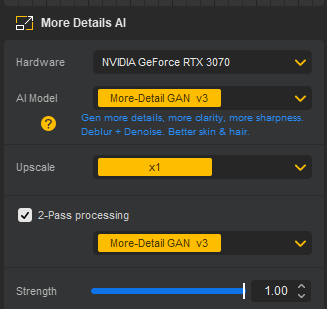
When you open the software, a few sample photos are displayed at the bottom of the screen so you can try things out. But the most interesting part is the tools section on the right. First, you’ll need to choose whether you want to use the CPU or a dedicated graphics card, which was my case. Then, as shown in the image below, you can view the different AI models used to perform some of the edits offered by the software.
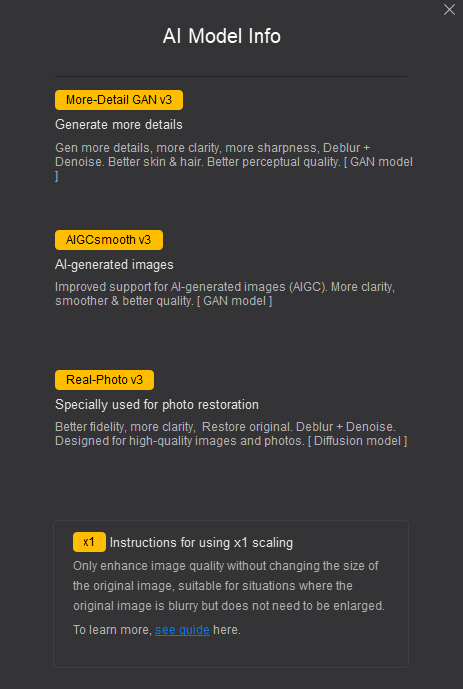
There’s also a small help section that explains what each AI model is designed for.
Below that, you also have access to the various tools offered by the software, including basic edits, cropping, color adjustments and, more interestingly, tools to restore faces or remove unwanted elements using artificial intelligence. I’ll stop here for this part, as I’ll go into more detail below.
Enhance a blurry or slightly botched photo
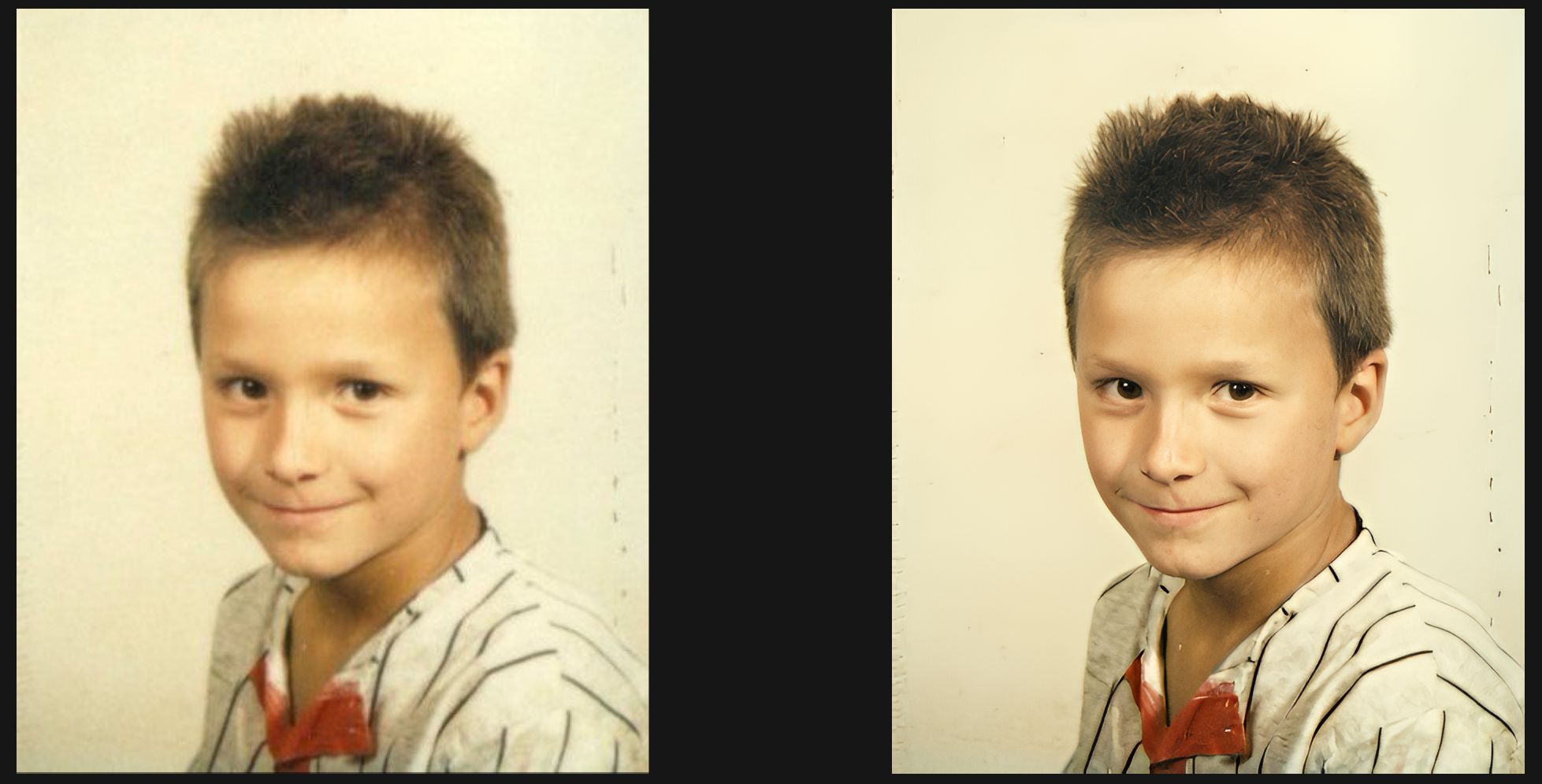
The first option I want to highlight is, of course, improving a blurry photo or one that didn’t come out quite right. In this case, I’m not necessarily talking about rebuilding the face, although you can obviously combine this with the Face Restoration option. Here, I used an old photo of myself as a child. And as you can see, the photo on the left below is really blurry.
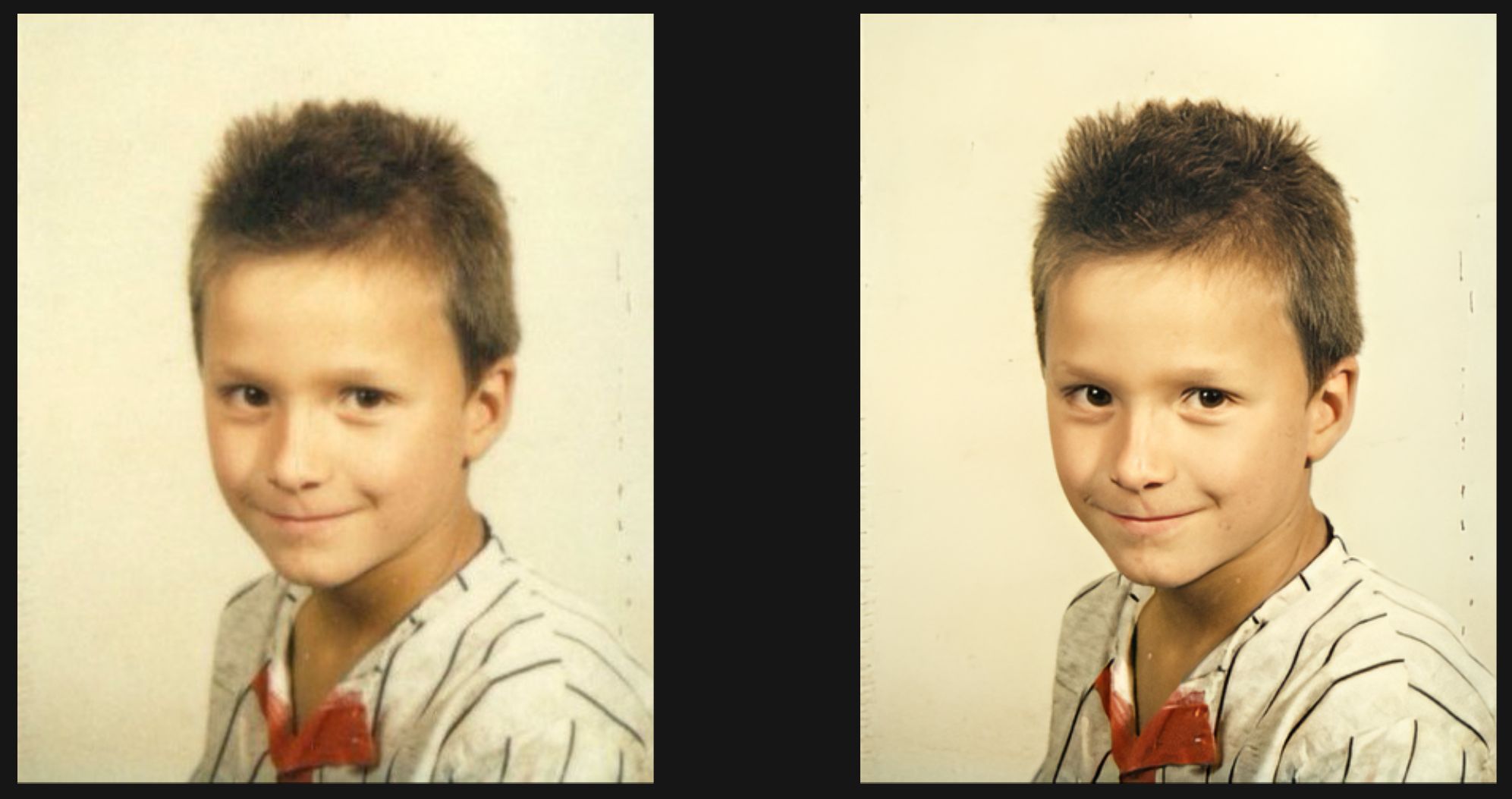
Thanks to the software, I was able to recover quite a lot of detail and get a sharper image that is perfectly usable.
Reduce noise in a photo taken in low light
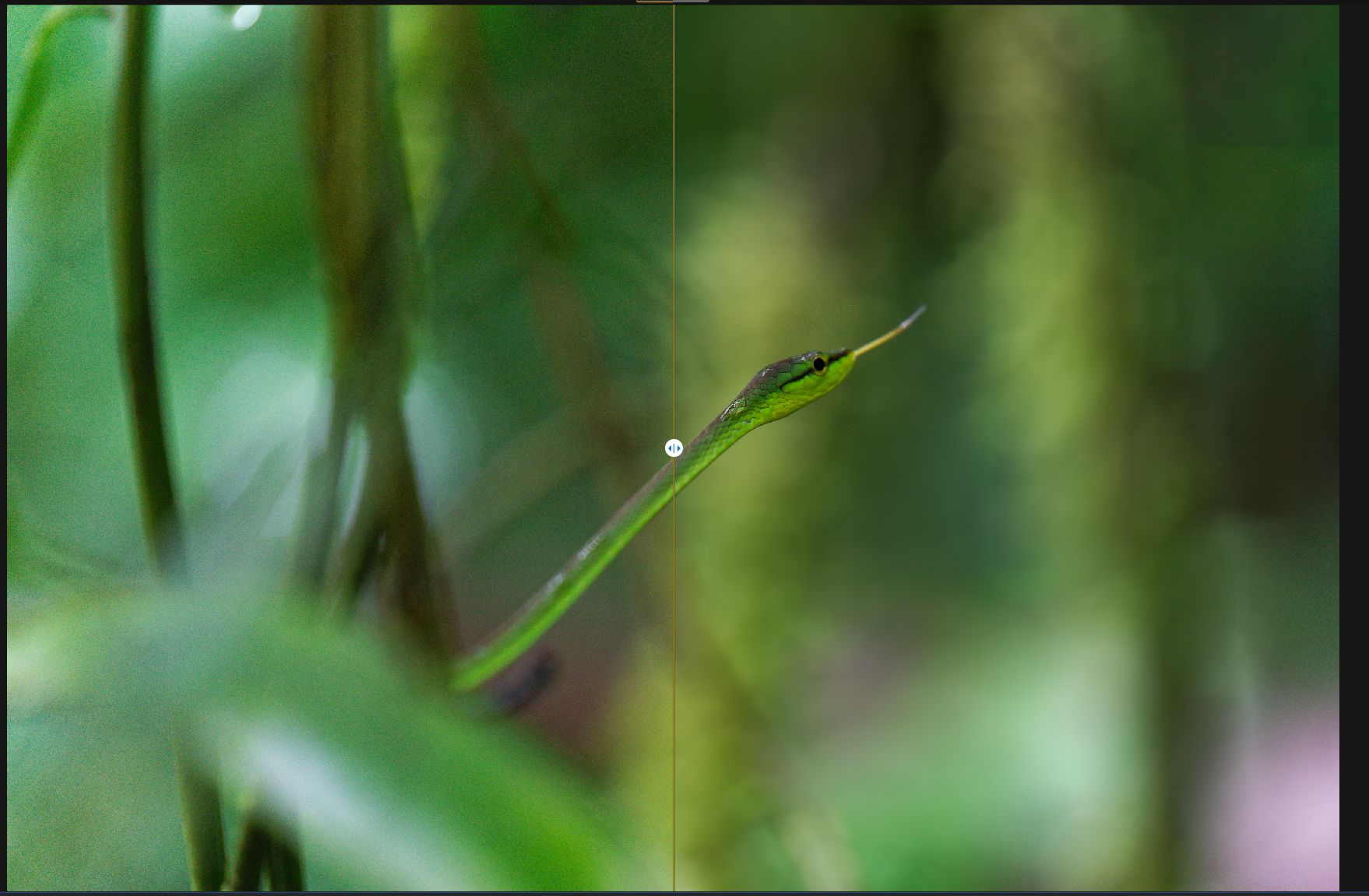
This is also an interesting feature of the software. By choosing different AI models, Aiarty Image Enhancer can reduce noise in low-light areas in a very convincing way. There isn’t really a specific option dedicated to this, but I ran several tests on different photos and found that it worked well. That said, it may not be the most useful feature if you’re already used to working with editing programs like Lightroom. But if you use this software to improve overall image quality, restore a face, or enhance a photo in general, you’ll also benefit from this nice extra improvement.
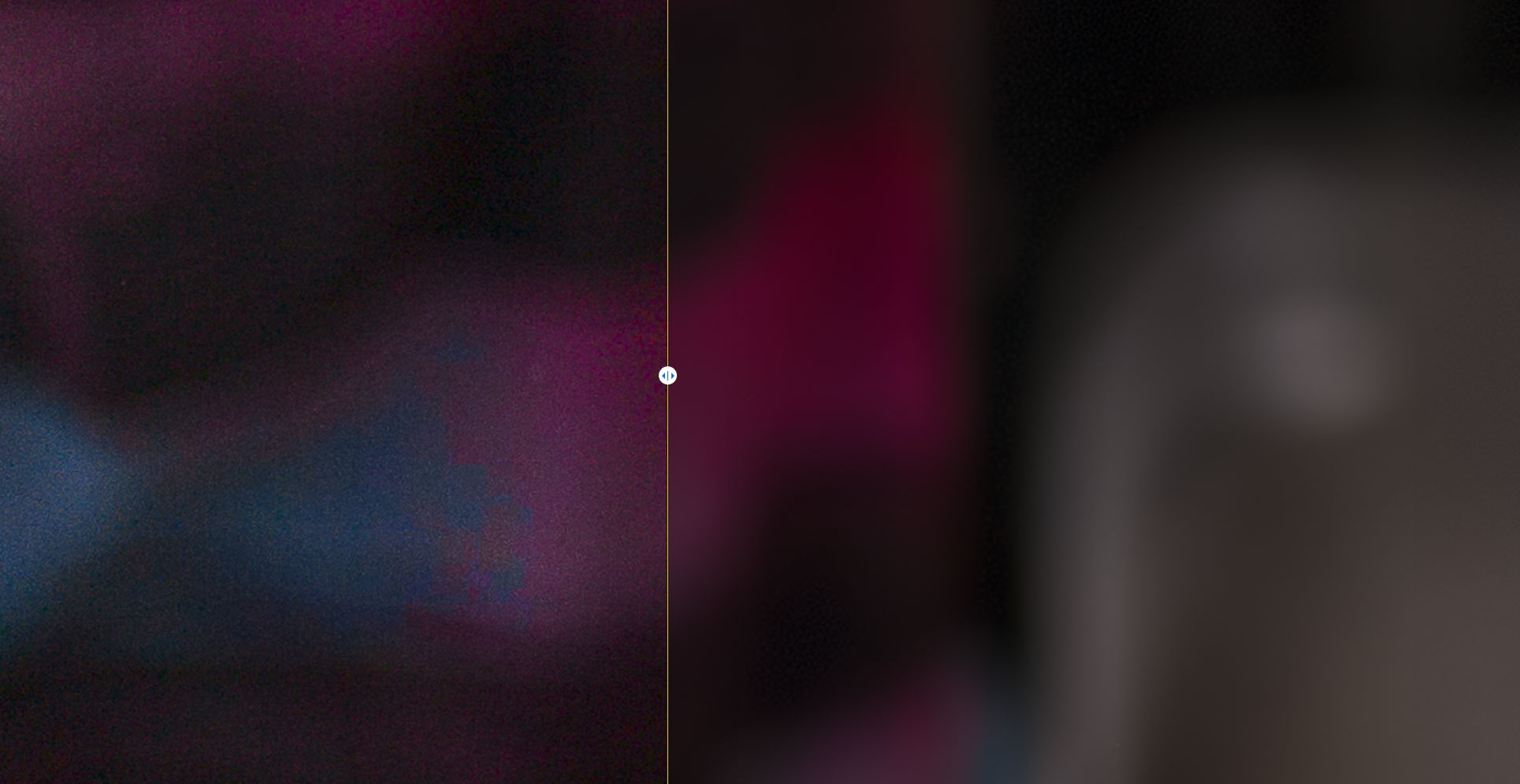
Obviously, the difference is only slightly visible on the full image, although I think you can already see a noticeable improvement, as in the snake photo below that I took in Costa Rica. But when you zoom in, as shown in the second image, the difference becomes much clearer.
When zooming in to 150% on a very noisy image, taken in a dark area of a market in Papeete, you can clearly see that the noise has disappeared on the right-hand side. For this test, I used the “Real-Photo V3” AI model, which is designed for higher-quality images and can both deblur and denoise the photo.
Enlarge a photo that’s too small without losing too much quality
To test this very interesting feature, I deliberately used the same old photo of myself as a child. This allowed me to test what is known in photo jargon as upscaling, which means increasing the size of a photo while trying to recover more detail, so it can be printed or displayed in better quality. The result is honestly impressive. See for yourself below with the same original image, which was only 401 x 485 pixels and which I upscaled to 2K, reaching 1692 x 2048 pixels.
I ran several tests on different images and, honestly, I found the results genuinely interesting.
You just need to be careful not to try to recover too much detail from a very small image, because the software can sometimes interpret or even invent details, which may lead to a less natural result. In some cases, the image can end up looking a little artificial.
Restore faces with Face Restoration
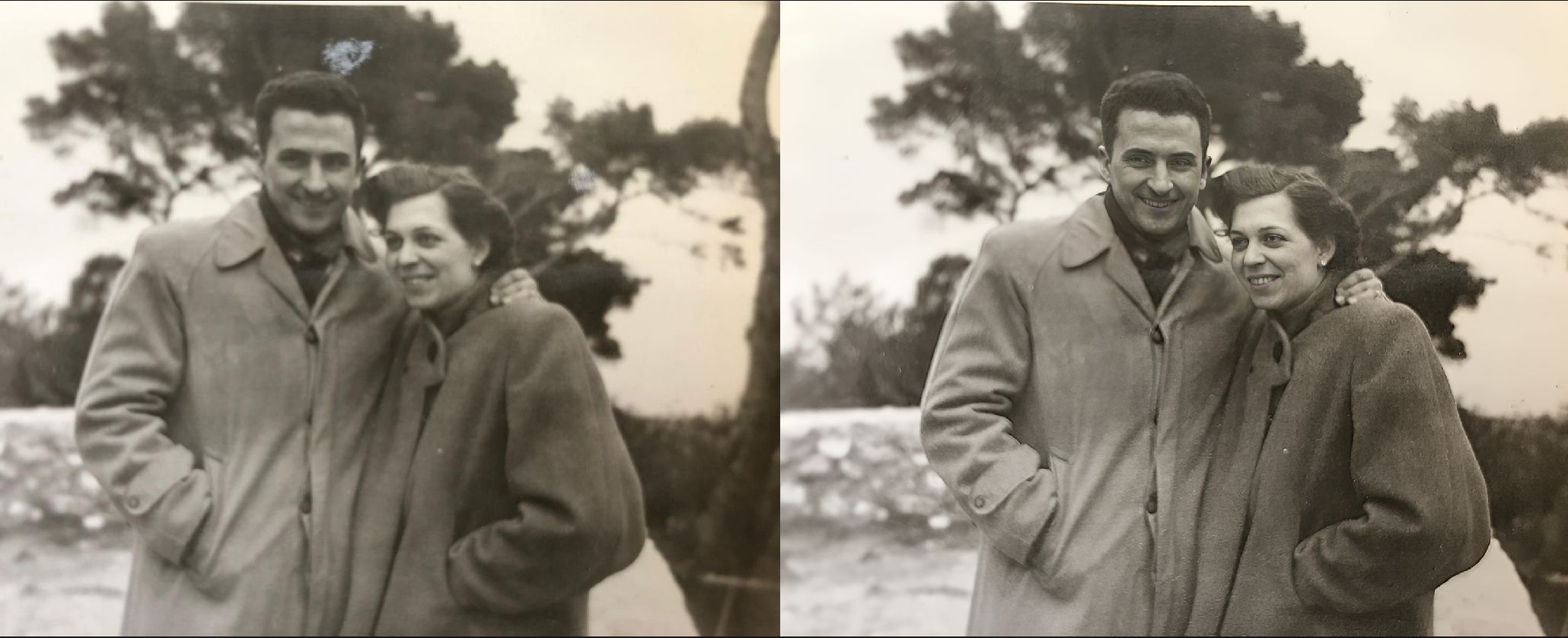
To be honest, I’d say this is probably the feature that impressed me the most. I had already heard about this kind of technology, but the results are genuinely impressive. I ran several tests, and I found that it works best on old, slightly blurry photos, where the AI can restore faces in a very convincing way.
To use this feature, you’ll need to go to the right-hand panel and click “Face Restoration” to enable it. You’ll then have two AI options: keeping the result close to the original image with “Fidelity”, or rebuilding it more heavily with “Rebuild”. I often found that the “Fidelity” option worked better, because it produced results that looked less artificial.
Here’s an example using an old photo to show you how powerful this feature can be.
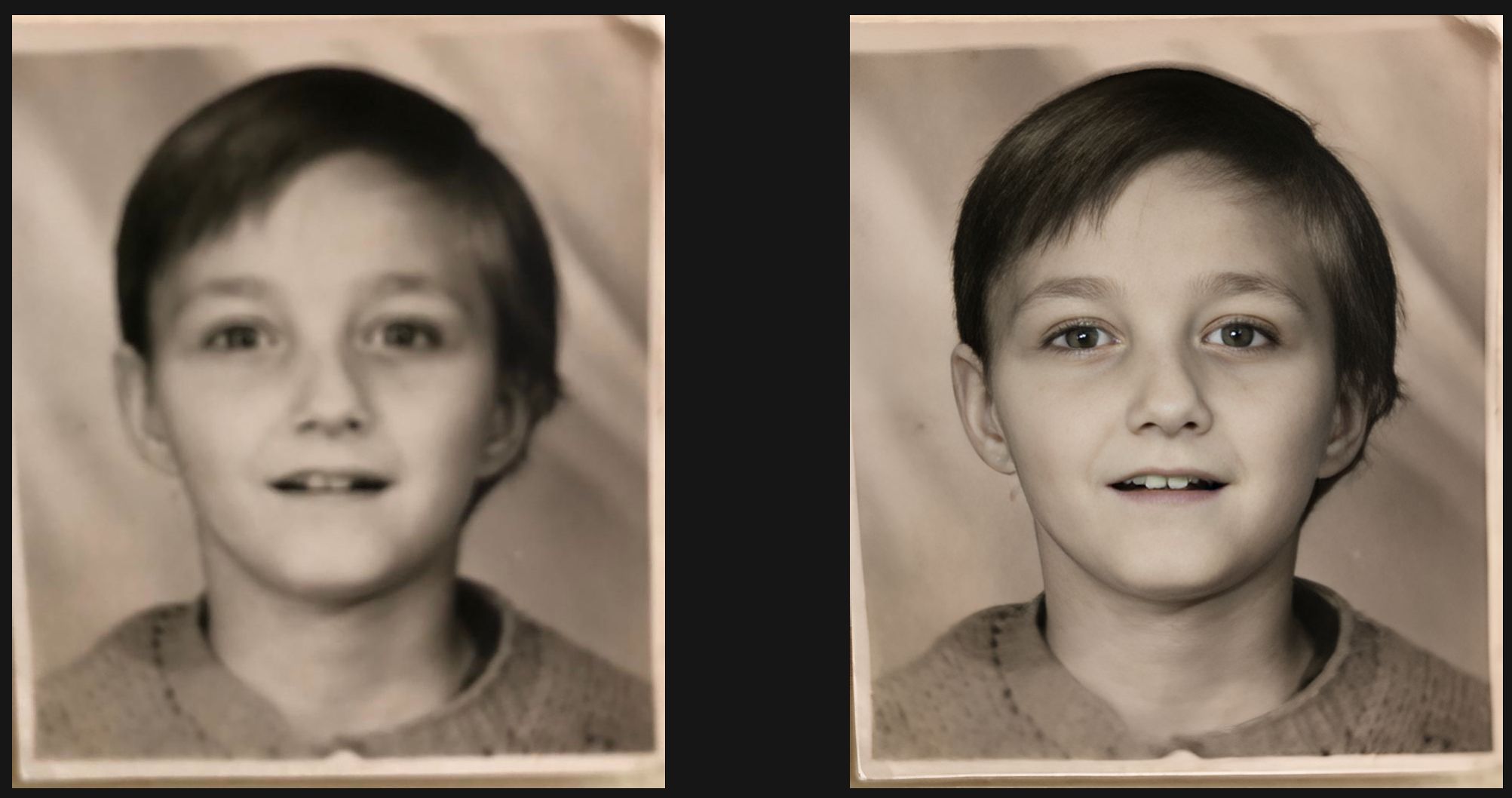
Of course, you can combine this feature with one of the AI image enhancement models, which makes for a very interesting combination. For example, in the image below, I was able to improve the sharpness using the “More-detail GAN v3” model and restore the faces of my two grandparents, which were originally very blurry. I should also mention that I used the “AI Eraser” option to remove the two white spots that you can clearly see in the image on the left. I’ll talk more about this feature below.
Remove an unwanted element from an image
The last feature I wanted to mention is also a very interesting one. Of course, software like Lightroom or Photoshop can do this kind of work just as well, but I found this tool simple and convenient to use, with very convincing results. The feature is still experimental, but from what I’ve seen, it already works quite well. That said, it’s not perfect yet, and you can see that the software tends to struggle a little more with complex landscapes that contain a lot of detail.
In the example below, I wanted to remove the paddle, the buoys in the background, and a kayak in front of us. Overall, the result works well, even if the area where the paddle was removed could look a little better.

I’d say it’s an interesting option, although it still needs some improvement, which makes sense since it is still an experimental feature.
The little extras
The software also offers a few useful extras, including basic edits such as color, contrast and exposure adjustments, as well as an HDR mode that you can enable. You can also crop or flip the photo, which is always useful.
In conclusion
A few final thoughts on Aiarty Image Enhancer. I really enjoyed testing this AI-powered software. Honestly, it’s quite different from the usual photo editing programs we’re used to, simply because it isn’t one, and it shouldn’t really be seen that way.
I’d say you should see this software as a complement to your usual RAW processing software. But clearly, what impressed me the most was its ability to improve low-quality images, recover detail, and especially restore faces.
So, is the software perfect? No, of course not. I sometimes found the module loading times a bit long, depending on what you ask it to do. I used a fairly powerful desktop PC, so the experience was still fine, but you do need a solid machine to run it properly.
In any case, it’s a tool I’d genuinely recommend to anyone who wants to restore old photos or improve blurry, low-quality images: it does the job very well.
I’m looking forward to testing another piece of software soon.

Written by Sylvain PONS
I've been passionate about photography since 2010, learning as I went along. Today, I dedicate myself to guiding others in their choice of camera gear and sharing a variety of tips to improve their photography skills.
Despite our care, a mistake may have slipped into this article. If you find any, please don't hesitate to let us know so we can correct it as soon as possible and keep our information up-to-date!